Deployment flow
Foundry Deploy is opened by the WinPE bootstrap after Foundry Connect has validated the runtime network state.
This is the execution phase. The user is no longer authoring media; the user is choosing how the target device will be deployed.
Deployment choices affect the target disk and operating system installation. Review the final page before starting execution.
Wizard sequence
Follow the wizard in order:
- Target
- Operating System Catalog
- Driver Pack
- Summary
If the welcome screen is shown first, select Start to open the wizard.
The wizard enables Next and Deploy only when the required selections for the current step are valid.
Target
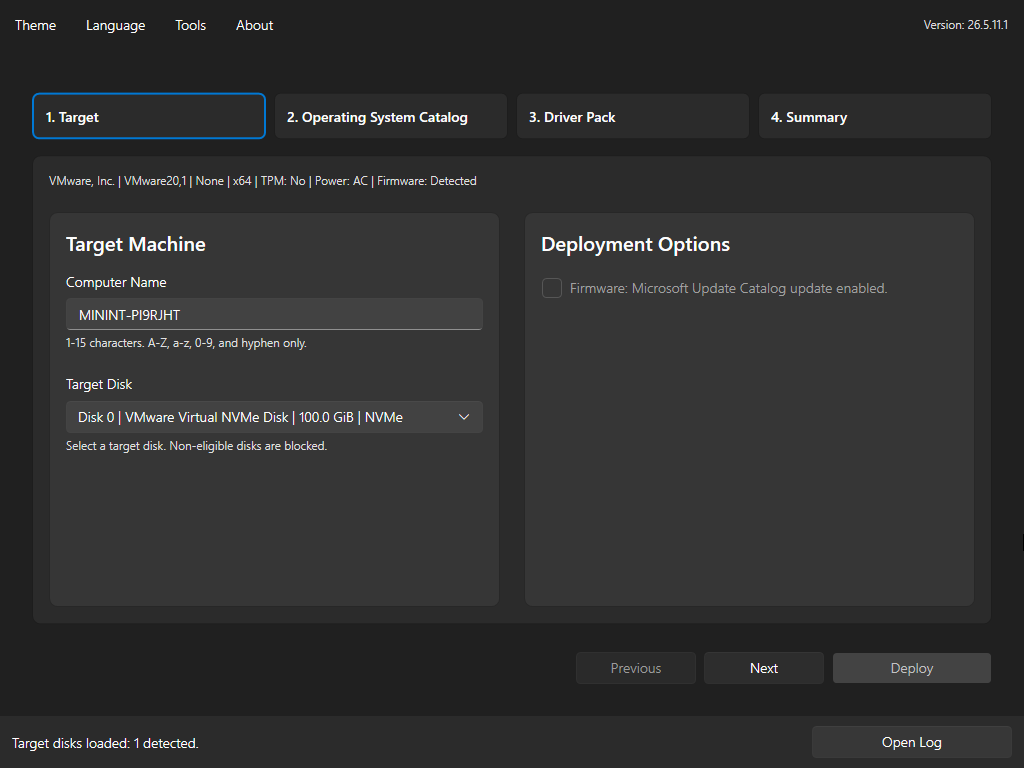
Use the Target page to confirm the target machine and deployment options.
Review or set:
Computer NameTarget DiskFirmware: Microsoft Update Catalog update enabled.- Autopilot provisioning mode, when Autopilot is enabled
Autopilot Profile, when JSON profile mode is enabled- Autopilot hardware hash upload status and group tag, when zero-touch hardware hash upload mode is enabled
The computer name must use 1 to 15 characters. Use letters, numbers, and hyphen only. If machine naming was staged by Foundry OSD, the field can be pre-filled, auto-generated, or read-only depending on the staged rule.
Select only the disk that should be erased and receive Windows. Foundry Deploy blocks disks that are not valid deployment targets.
Operating System Catalog
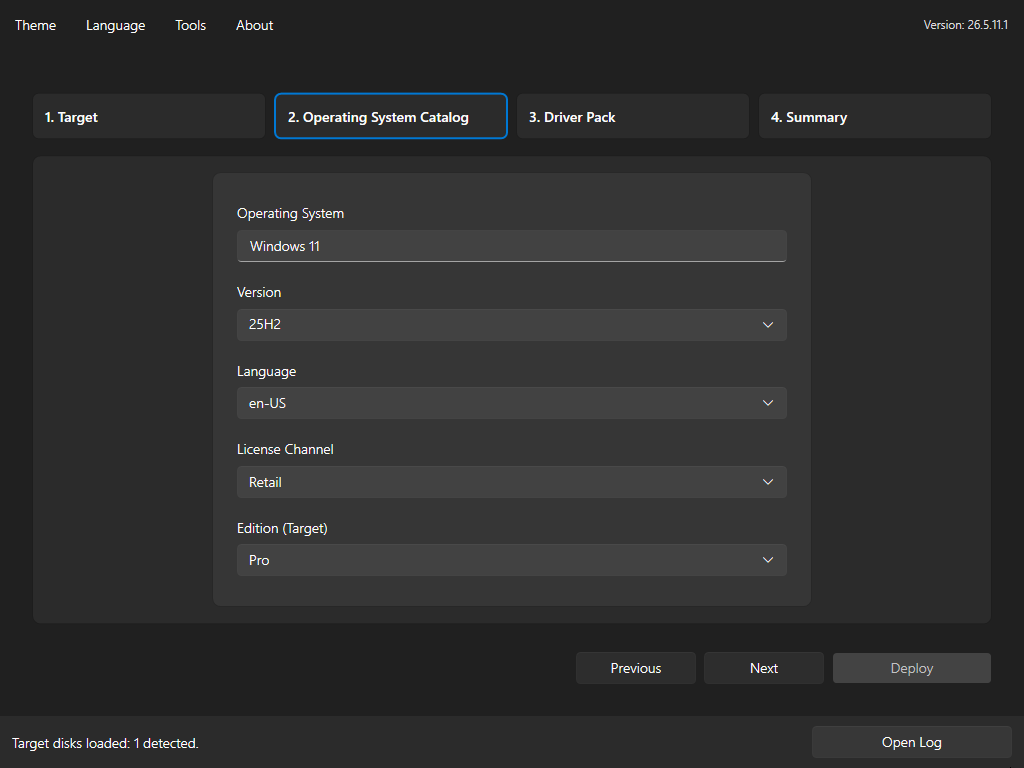
Use the Operating System Catalog page to choose the Windows image from the catalog-backed filters.
Review or set:
Operating SystemVersionLanguageLicense ChannelEdition (Target)
The available filter values come from the loaded catalog. If Foundry OSD staged an enabled operating system selection policy, the page can start with predefined values and can hide unapproved options. If that policy is disabled, Foundry Deploy uses the unrestricted catalog.
When exactly one valid value is allowed for a selector, Foundry Deploy preselects that value and disables the selector. Default values only preselect choices; they do not expand the allowed list.
When no default is configured, Foundry Deploy keeps its normal catalog default order: 25H2 when available, the current deployment UI language with en-US as fallback, Retail when available, Pro when available, then the first valid catalog option if the preferred value is unavailable in the current scope.
License channel and edition values use English catalog labels. RET is shown as Retail, VOL is shown as Volume, and edition names such as Pro and Enterprise remain English.
Driver Pack
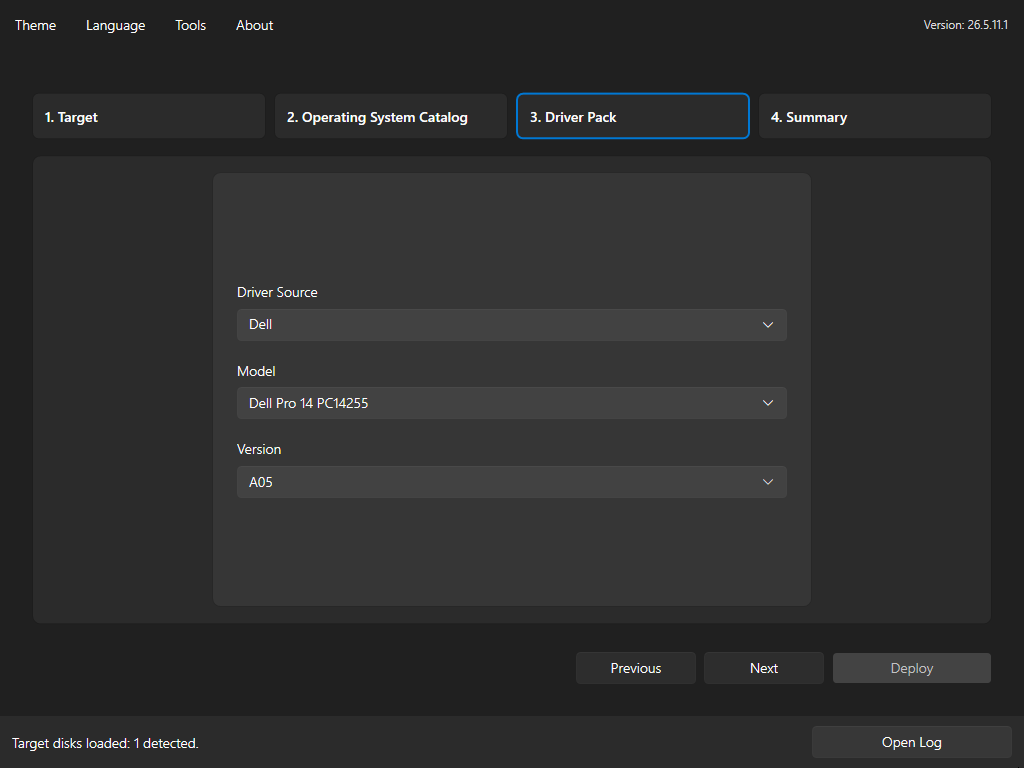
Use the Driver Pack page to choose how drivers are selected for the target device.
Review or set:
Driver SourceModelVersion
The Model and Version controls are enabled only when the selected driver source exposes those choices.
OEM driver pack deployment requires a valid model and version selection. Microsoft Update Catalog mode does not require those OEM selections.
Summary
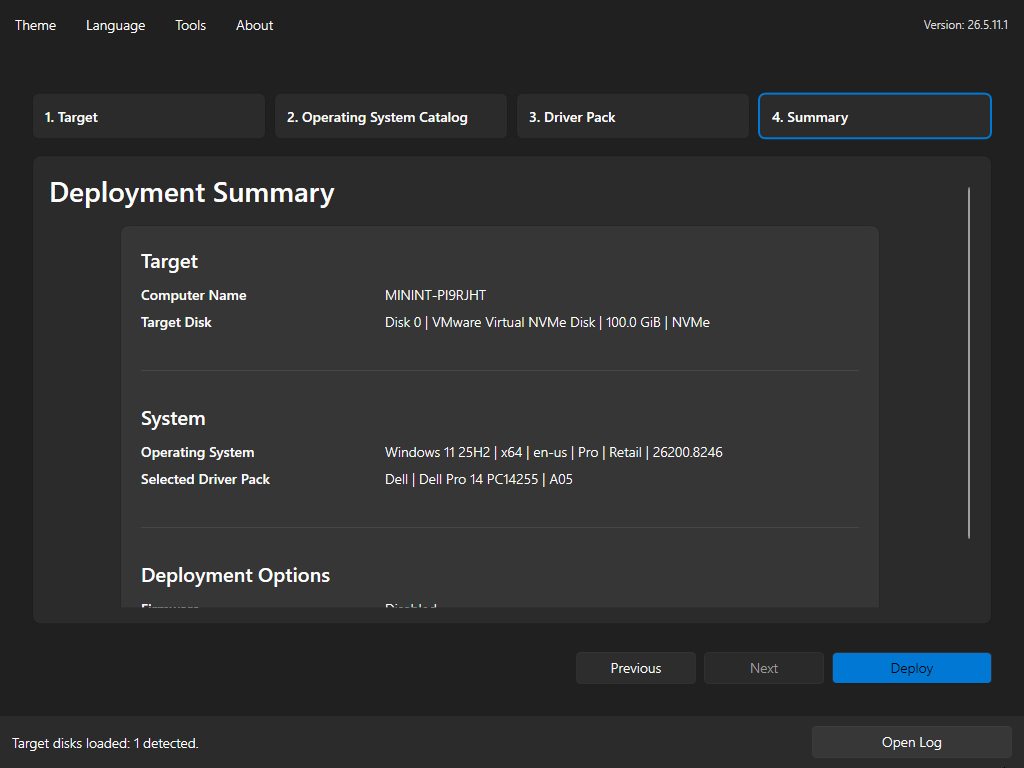
Use the Summary page as the final review before execution.
Verify:
- Target computer name
- Target disk
- Operating system
- Selected driver pack
- Firmware setting
- Autopilot mode and selected profile, when JSON profile mode is enabled
- Autopilot hardware hash upload status and group tag, when zero-touch hardware hash upload mode is enabled
The Deploy command becomes actionable from this page when the required selections are valid.
Confirm disk erase
After selecting Deploy, Foundry Deploy shows Confirm Disk Erase.
Review the disk number, model, bus, size, and selected operating system. Continue only when the disk is the intended target.
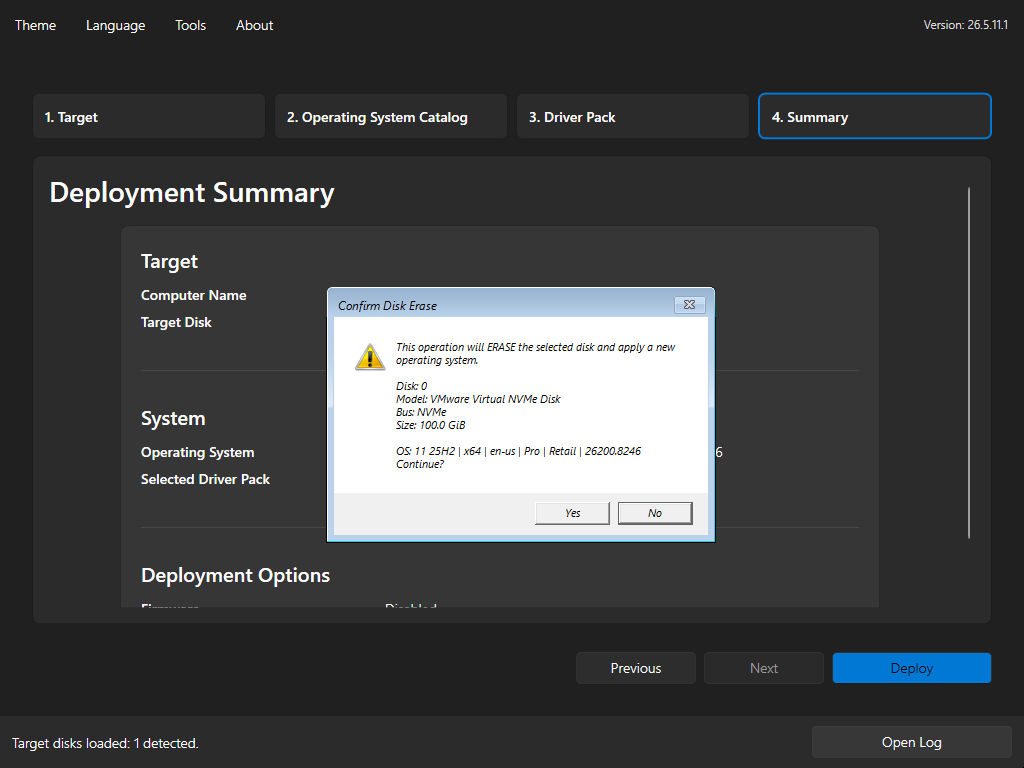
If the confirmation is cancelled, deployment does not start.
Deployment progress
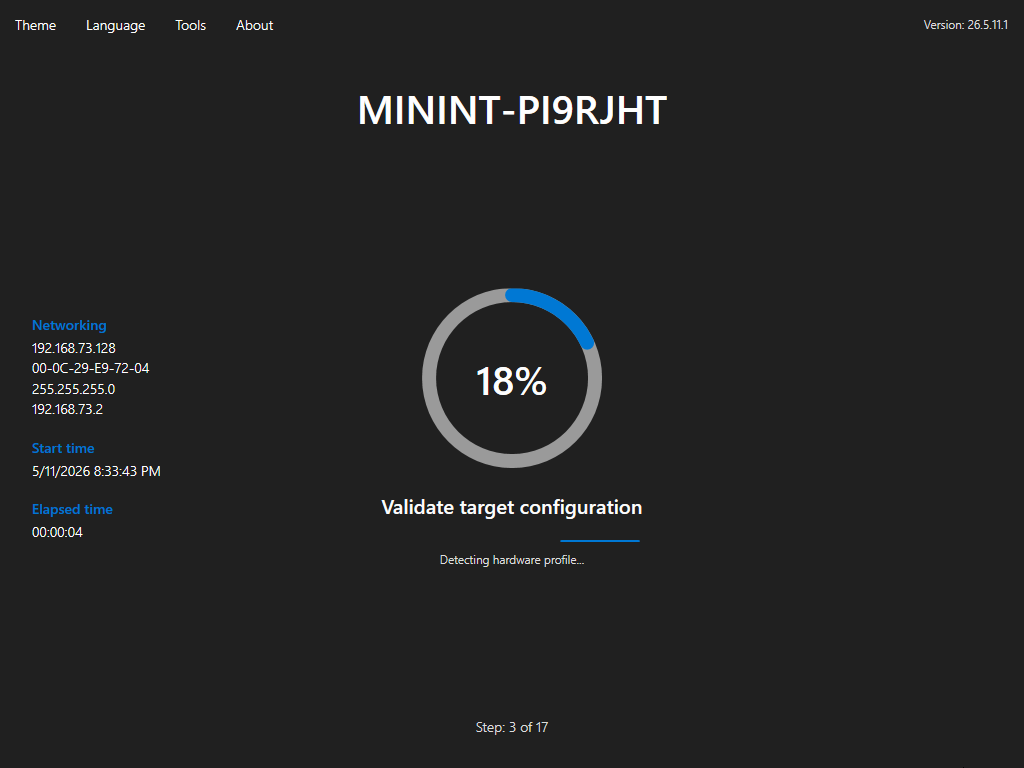
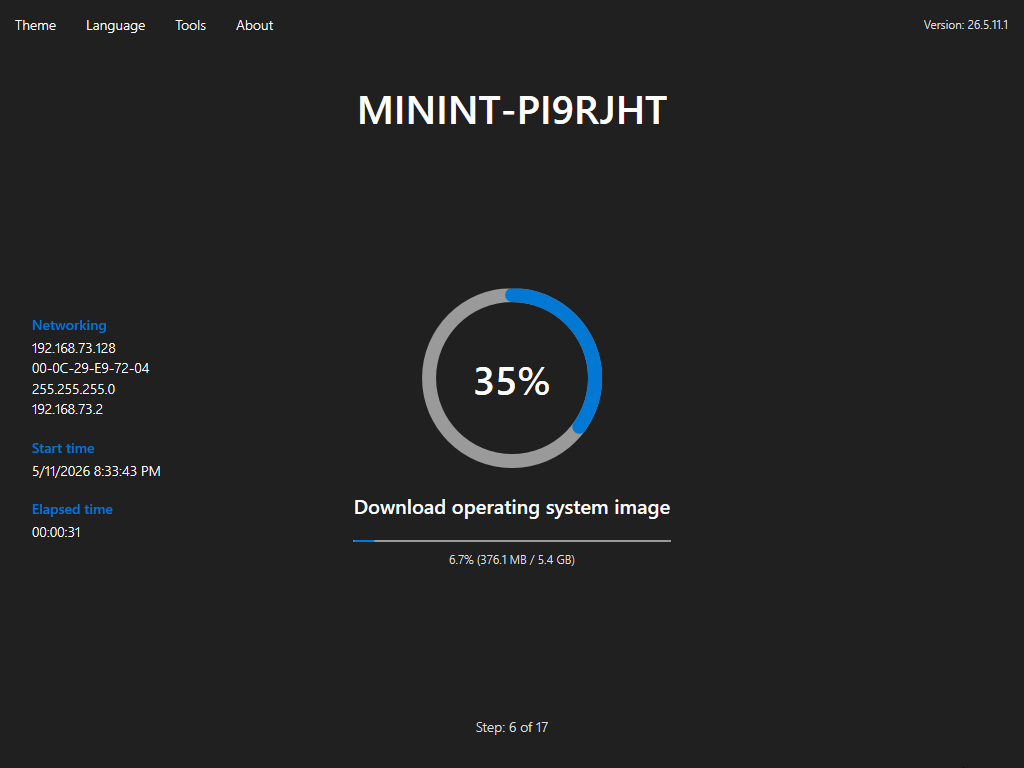
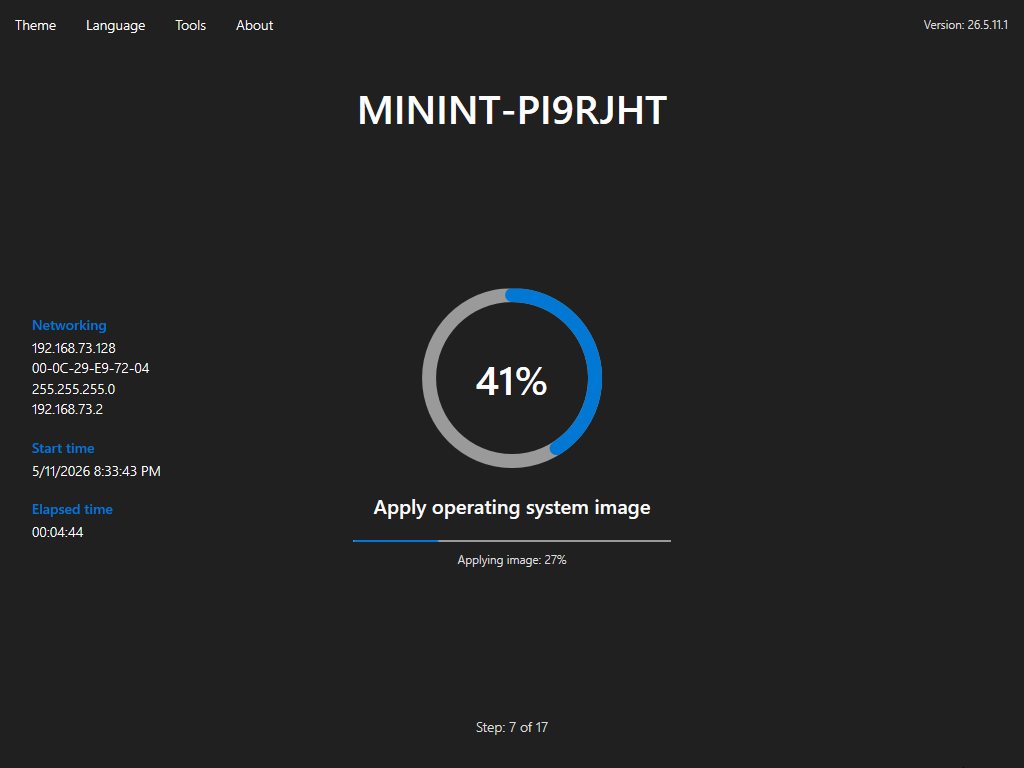
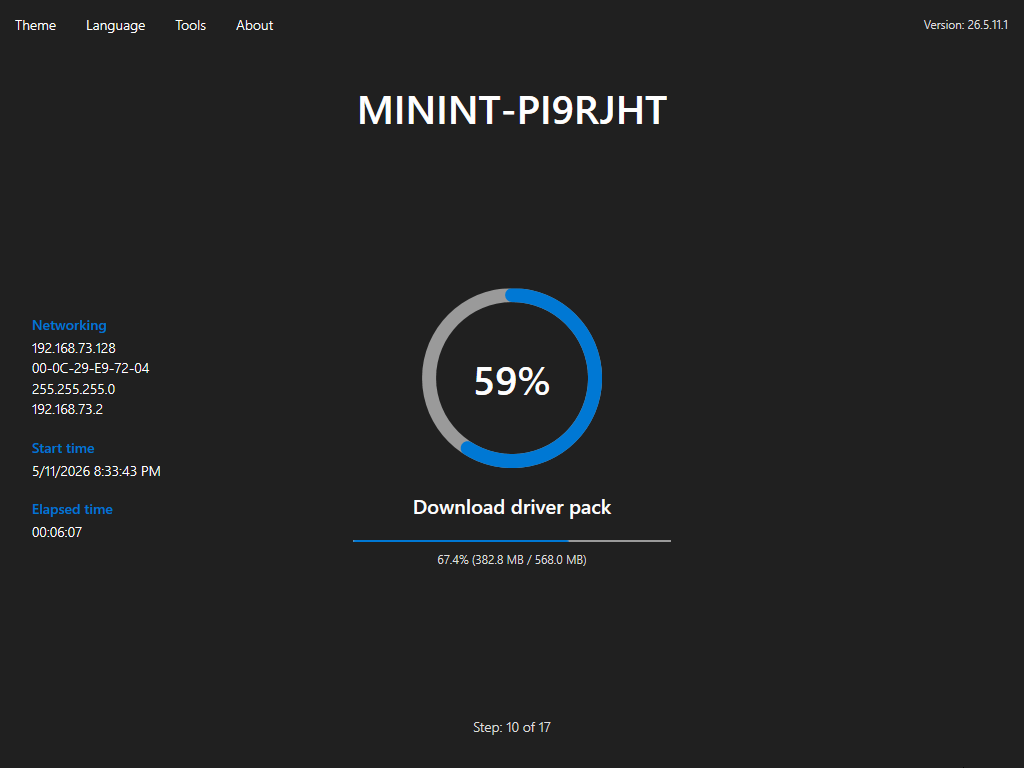
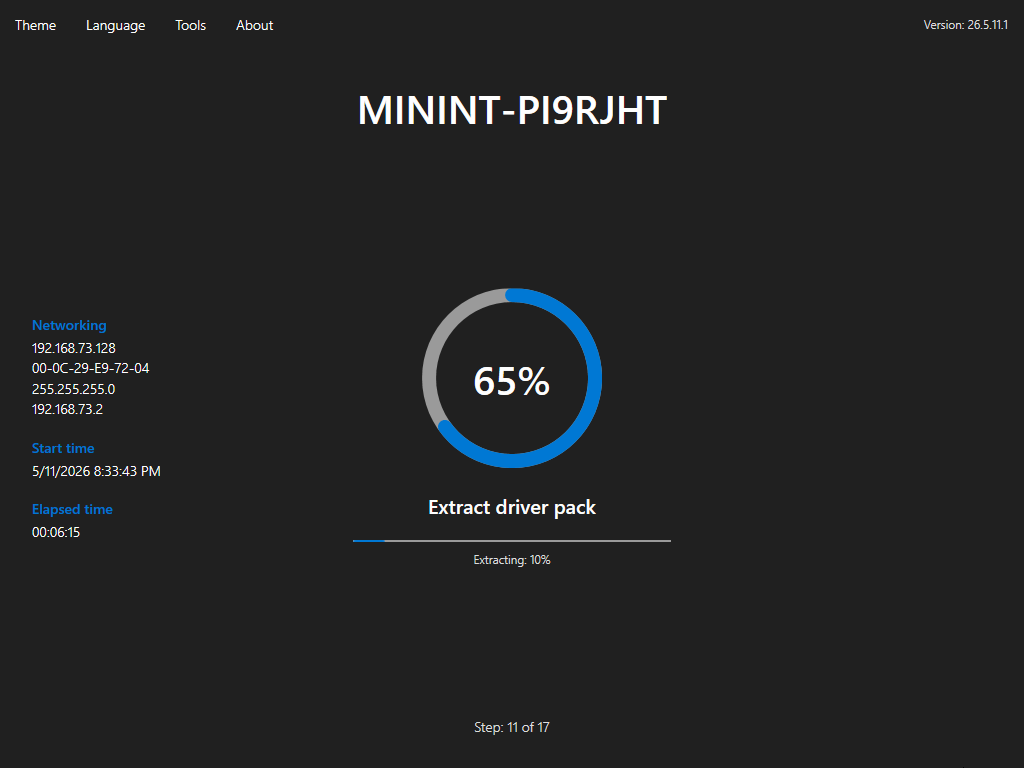
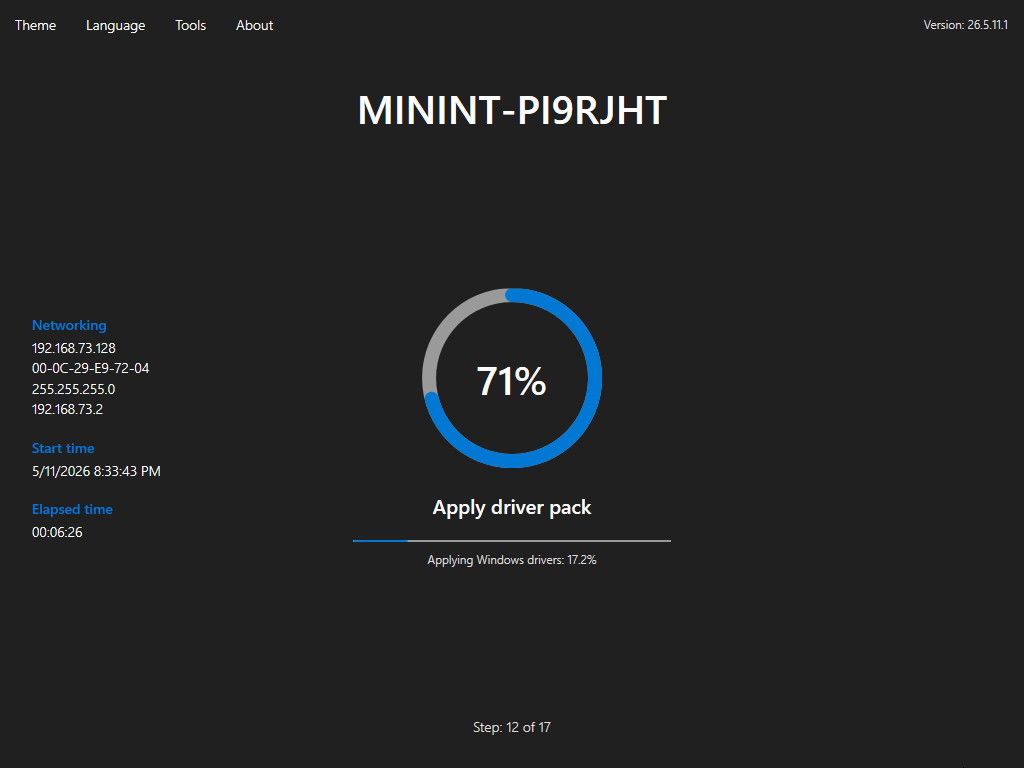
During execution, Foundry Deploy shows:
- Computer name
- Network details
- Start time and elapsed time
- Global progress percentage
- Current step name
- Current step progress
- Step counter
The deployment pipeline runs ordered steps for validation, cache resolution, disk layout, operating system download and apply, computer naming, offline OOBE and AI policy defaults, recovery configuration, pre-OOBE customization staging, drivers, firmware, Autopilot provisioning, and final logs. Download steps can be skipped when the required content is already available in cache.
When Windows profile roaming is enabled, pre-OOBE customization staging also imports captured Wi-Fi and wired 802.1X profile material into the applied Windows image. Foundry Deploy stages a SetupComplete importer that runs after deferred driver installation if one is required, imports public certificates into LocalMachine\Root, imports opted-in PFX client certificates into LocalMachine\My, adds wired and Wi-Fi profiles with netsh, marks pre-OOBE-connectable Wi-Fi profiles for automatic connection, asks Windows to connect those Wi-Fi profiles, and removes transient profile and password staging files.
Autopilot provisioning is mode-aware:
- JSON profile mode stages
AutopilotConfigurationFile.jsoninto the applied Windows image. - Zero-touch hardware hash upload mode captures the device hash after Windows apply, imports it with Microsoft Graph, and waits up to 10 minutes for the serial number to appear in Windows Autopilot devices.
- Interactive hardware hash upload mode stages the OOBE registration assistant into the applied Windows image.
Read Autopilot Overview before using an Autopilot mode in production.
Completion
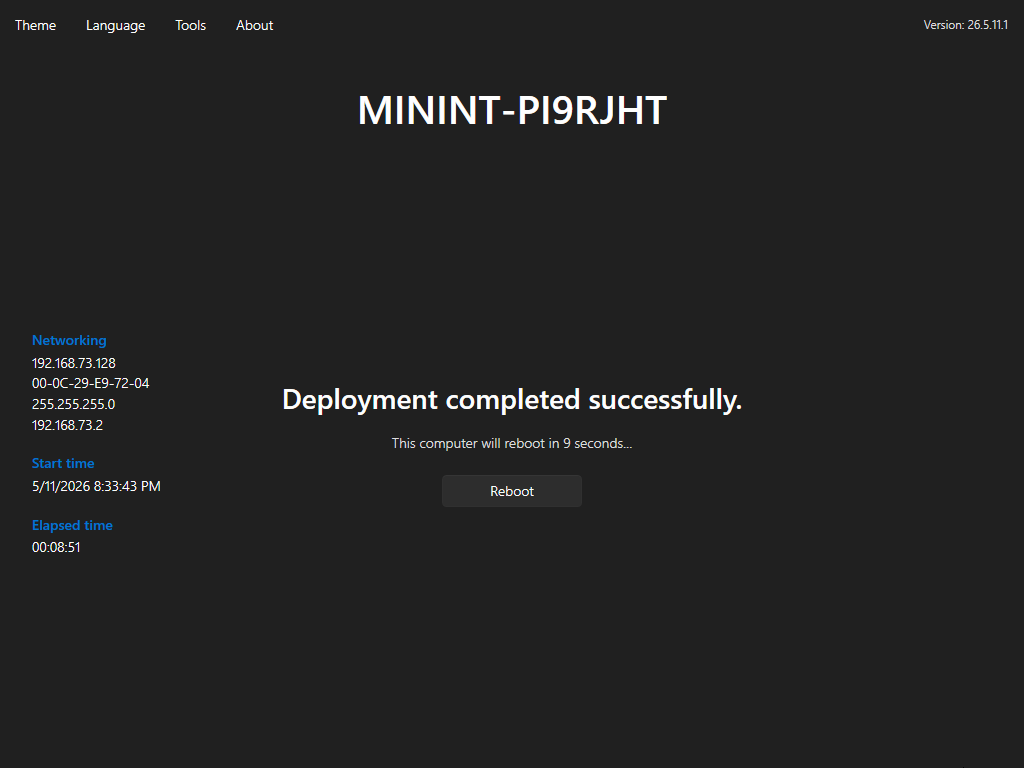
When deployment completes successfully, Foundry Deploy shows the completion state, starts the reboot countdown, and offers Reboot.
Failure state
If deployment fails, Foundry Deploy shows the failed step and error message. Use Open Log from the runtime menu to inspect the deployment log before retrying.
Next steps
- Review the Expert Mode section to understand which values can be staged from Foundry OSD.
- Open Catalog Overview to understand where operating system and driver choices come from.