Network readiness
Foundry Connect runs first after the target device boots into WinPE.
Its role is to validate the runtime network state before deployment continues.
Closing Foundry Connect is treated as an abort path. Continue only through the controlled ready state.
Runtime order
Foundry Connect follows this runtime sequence:
- Load the staged network configuration.
- Apply provisioned network settings when present.
- Refresh the first network snapshot.
- Inspect Ethernet and Wi-Fi runtime state.
- Validate internet access.
- Return success to the bootstrap after internet access is validated.
Use Tools > Refresh Status when the network state changed and the screen has not refreshed yet.
The bottom status bar shows the active configuration source, the refresh interval, and the last refresh time.
Main readiness state
The top status card is the primary decision point.
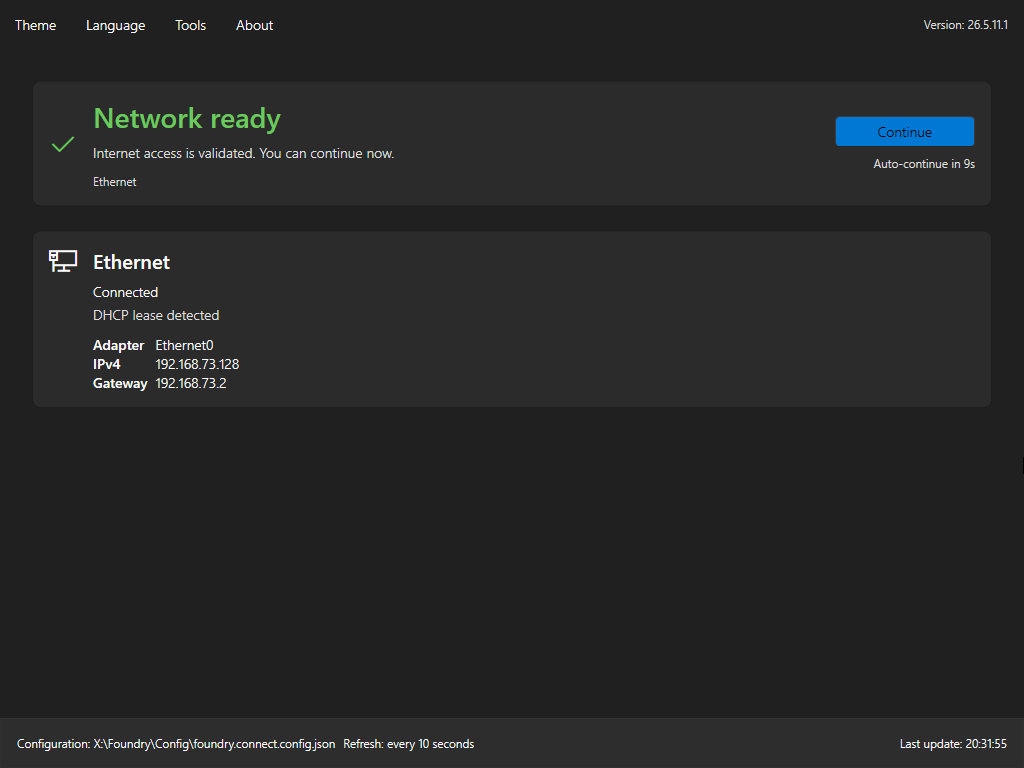
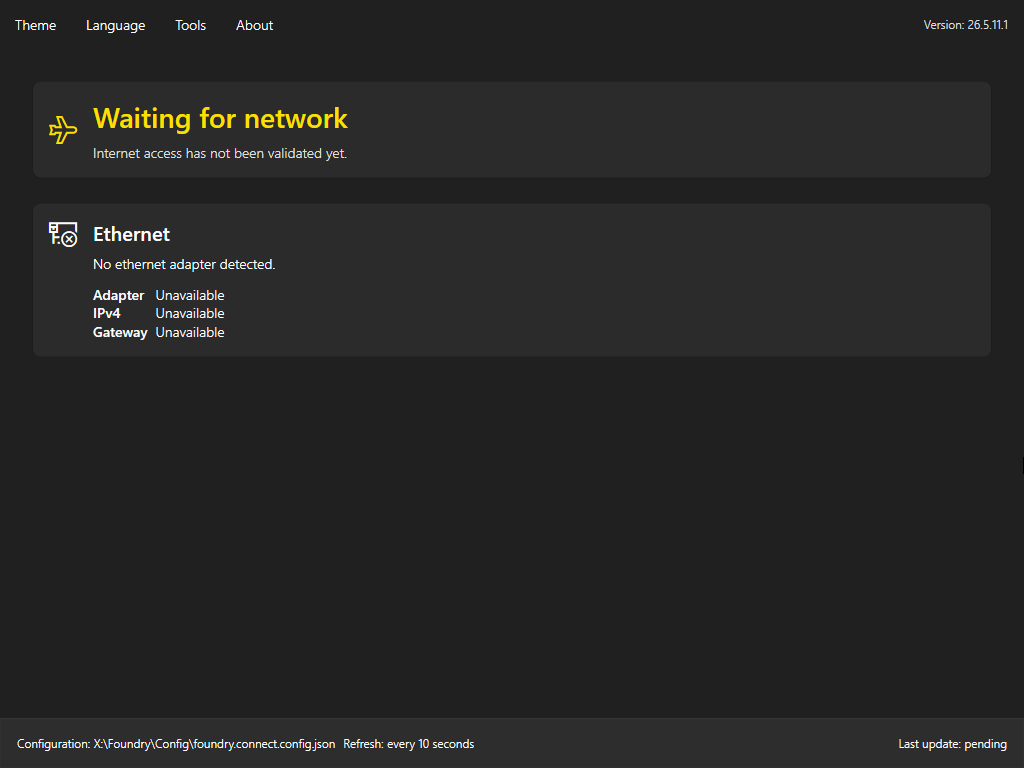
Foundry Connect shows Waiting for network until internet access has been validated. When validation succeeds, it shows Network ready, displays the Continue button, and starts an Auto-continue countdown in normal runtime.
If Foundry Connect cannot refresh the network snapshot, the same card shows Network refresh failed with the refresh error. Use Tools > Refresh Status after correcting the underlying network or runtime issue.
Select Continue to return success to the bootstrap immediately. If the countdown completes while the network remains ready, Foundry Connect exits successfully and the bootstrap opens Foundry Deploy.
Ethernet state
The Ethernet card shows the wired network state used for readiness troubleshooting.
Review these fields:
- Adapter: the detected Ethernet adapter name, or Unavailable when no adapter is detected.
- IPv4: the current IPv4 address, or Unavailable when no address is available.
- Gateway: the current default gateway, or Unavailable when no gateway is available.
Typical Ethernet states include:
- No ethernet adapter detected.
- No active link
- Waiting for network configuration
- Waiting for DHCP or static network configuration
- DHCP lease detected
- Static network configuration detected
If Ethernet is expected, verify the cable, adapter presence, IP address, and gateway before continuing.
Wi-Fi state
When Wi-Fi support is provisioned in the boot image and the WinPE Wi-Fi runtime is available, Foundry Connect switches to an Ethernet and Wi-Fi layout.
The Provisioned Wi-Fi card is used for Wi-Fi settings staged by Foundry OSD. It shows the profile name, authentication type, connection status, and Connect or Disconnect actions when a provisioned profile is available.
The Wi-Fi card shows discovered wireless networks with SSID, authentication, connection state, and signal strength. Use the refresh button to rescan networks, select a network, enter the passphrase when requested, and select Connect. The reveal button can show or hide the passphrase while entering it. If the selected network is already connected, use Disconnect when the connection must be changed.
Enterprise Wi-Fi from the discovery list requires a provisioned profile template in the boot image. If direct connection is not supported for the selected network, Foundry Connect shows Provisioned profile required in this build.
Inputs staged by Foundry OSD
Foundry OSD can stage:
- Wired 802.1X profile templates
- Wired trust certificates
- Personal Wi-Fi settings
- Enterprise Wi-Fi profile templates
- Enterprise Wi-Fi trust certificates
- Windows profile roaming policy
Read Network Configuration for the workstation-side settings.
Windows profile roaming capture
When Windows profile roaming is enabled in Foundry OSD, Foundry Connect writes a roaming bundle after successful profile provisioning or connection:
- Provisioned Wi-Fi profile XML after Foundry Connect adds the profile to WinPE.
- Manual Wi-Fi profile XML after the selected network connects successfully.
- Wired 802.1X profile XML after Foundry Connect adds the LAN profile to WinPE.
- Required public trust certificates.
- PFX client certificates and encrypted PFX password metadata only when private-key roaming is explicitly enabled.
The roaming bundle is consumed by Foundry Deploy. It is not a readiness replacement: Foundry Connect still waits for internet validation before deployment can continue.
Not-ready state
If the runtime network state is not ready, Foundry Connect keeps the deployment workflow gated.
Use the screen state to determine whether the issue is:
- Missing adapter connectivity
- Missing IPv4 or gateway configuration
- Provisioned Wi-Fi profile unavailable
- Wi-Fi not connected
- Network refresh failure
- Internet validation failure
Next step
After Foundry Connect reports Network ready, select Continue or let auto-continue return success to the bootstrap. The bootstrap then opens Deployment Flow. Closing Foundry Connect before that controlled exit stops the bootstrap flow.
If the media was built for zero-touch hardware hash upload, keep network access available through deployment. Foundry Deploy must reach Microsoft Entra and Microsoft Graph after Windows has been applied. If the media was built for interactive hardware hash upload, network access must also be available during Windows OOBE. Tenant workflows that use Microsoft Graph also require an administrator who can grant the required consent in the tenant. Read Autopilot Overview before using an Autopilot mode.