Media creation
Foundry OSD creates the boot media used to start the target device.
Standard media settings
Set the standard media options before starting the build:
- ISO output path
- USB target disk
- Target architecture
- WinPE language
- WinPE driver vendors
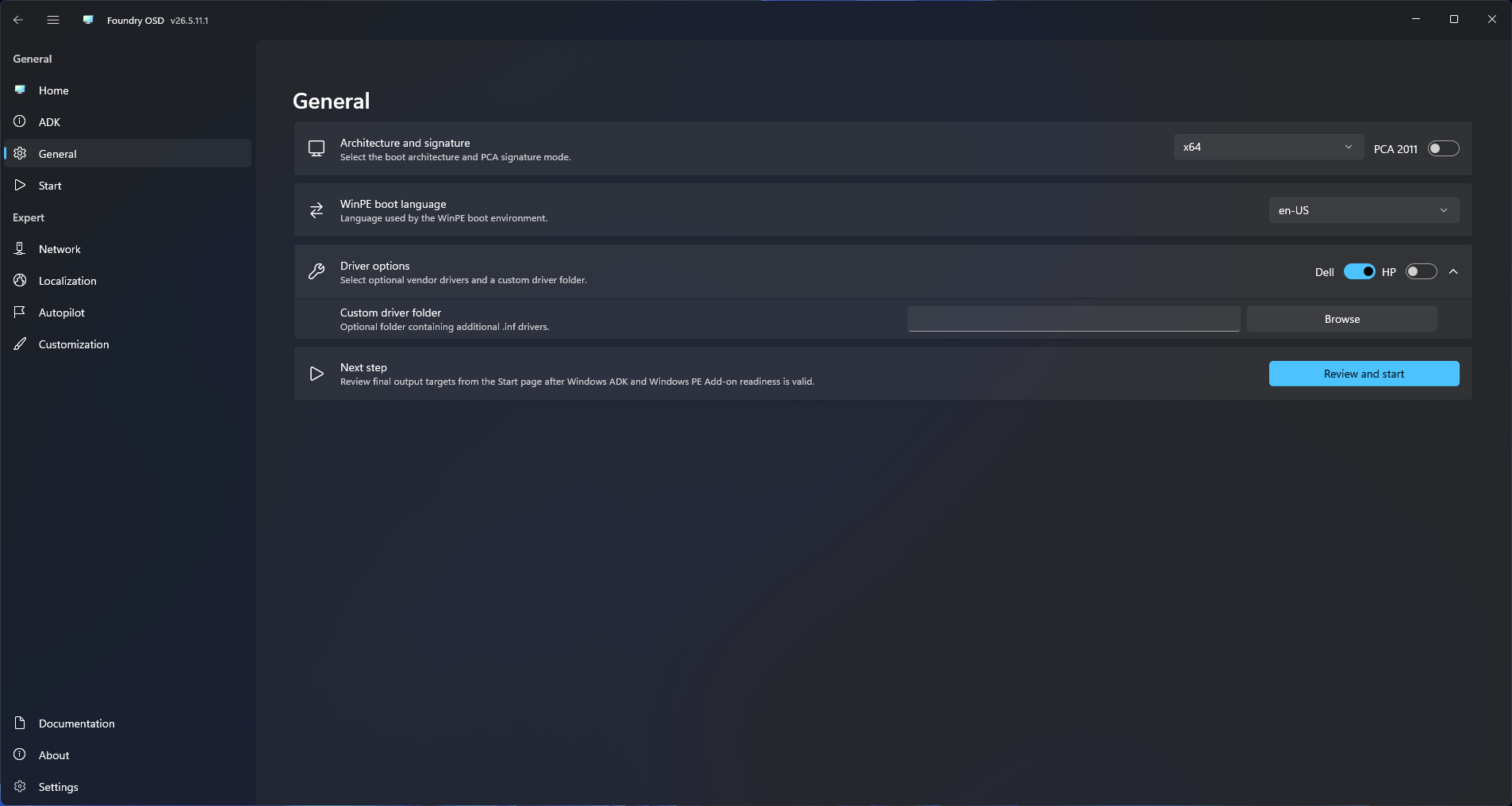
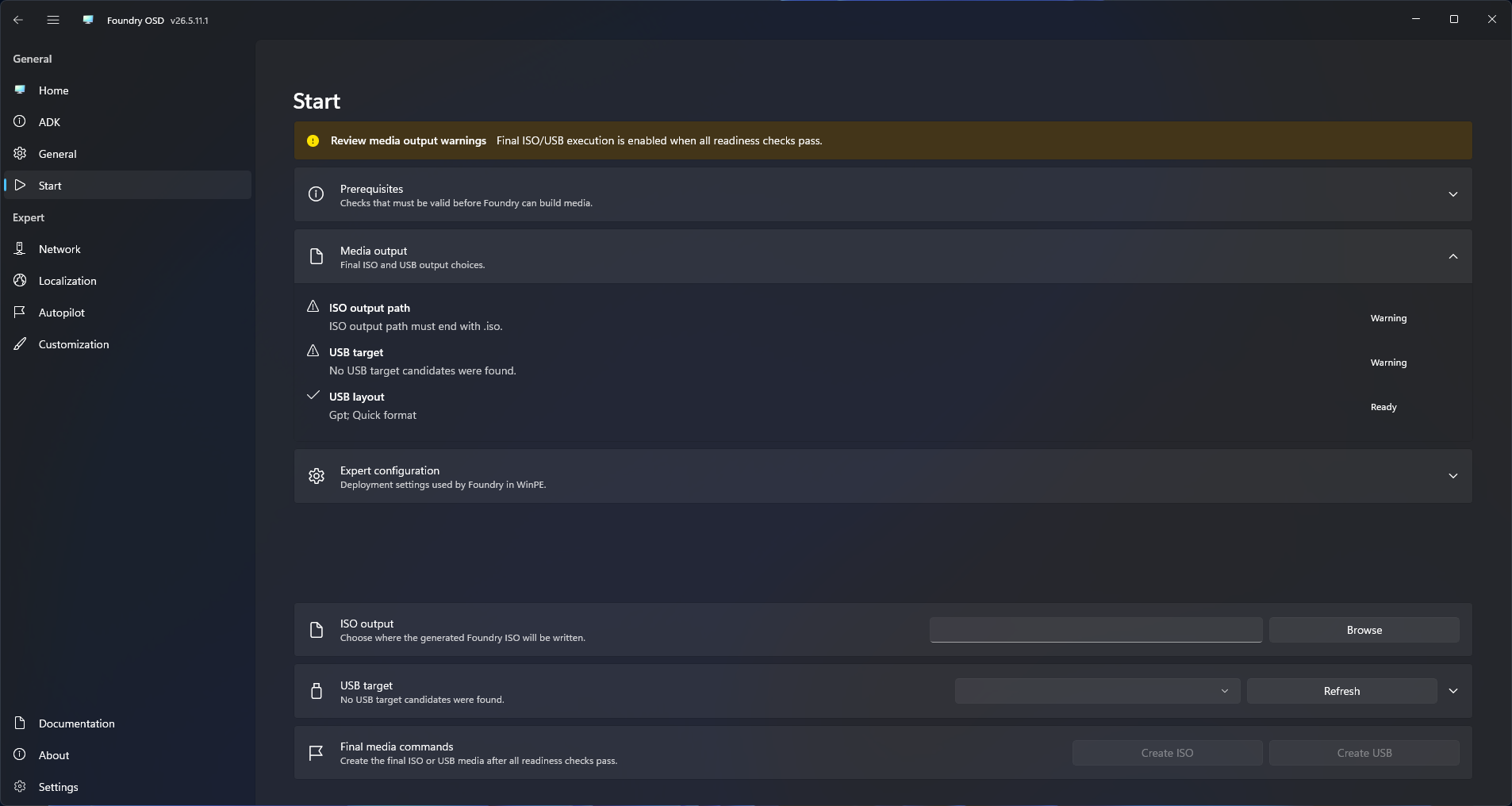
ISO and USB comparison
| Aspect | ISO | USB |
|---|---|---|
| Output | Single .iso file | Bootable physical USB device |
| Destructive behavior | Non-destructive | Erases and repartitions the selected USB disk |
| Best fit | VM testing, remote mounting, archival, controlled distribution | Field media, repeated deployments, persistent cache-backed workflows |
| Runtime storage | ISO-backed runtime path | Persistent Foundry Cache partition |
| Cache directories | No dedicated USB cache partition | Initializes Runtime, Cache\OperatingSystems, Cache\DriverPacks, Cache\Firmware, State, and Temp |
| Operational tradeoff | Easy to store and distribute, but not a prepared physical device | Ready to boot directly, but tied to the selected USB disk |
Choose ISO when you need a reusable artifact. Choose USB when you need a physical deployment device prepared directly by Foundry OSD.
On GPT USB media, the BOOT partition is an EFI System Partition for both Create USB and Update USB workflows. Windows Explorer may ask for elevated access when opening that partition, and after unplugging and reconnecting the USB drive Windows may not assign BOOT a drive letter at all. This does not indicate a failed media creation, failed update, or cache loss. Use Foundry Cache for persistent user-accessible storage.
Shared preparation
Before either output is created, Foundry OSD prepares the same WinPE workspace:
- Resolve ADK tooling.
- Build the WinPE workspace.
- Inject selected drivers.
- Apply WinPE language components.
- Provision Foundry Connect.
- Stage configuration, network assets, Autopilot JSON profiles, zero-touch hardware hash upload assets, or interactive registration assets when configured.
- Prepare the bootstrap path that resolves Foundry Deploy later in WinPE.
Zero-touch hardware hash upload media includes encrypted tenant configuration, the selected certificate material needed for WinPE Microsoft Graph authentication, the default group tag preference, and OA3Tool assets for the selected architecture. Foundry OSD does not stage the full tenant group tag list into the boot image; Foundry Deploy discovers the live list during deployment. The private key is selected only for media generation and is not persisted in Foundry OSD configuration.
Foundry OSD does not stage PCPKsp.dll into the boot image. Foundry Deploy copies that file from the applied Windows image into X:\Windows\System32 near the end of deployment before hardware hash capture runs.
Interactive hardware hash upload media does not include a PFX secret. Foundry Deploy stages an OOBE assistant into the applied Windows image, and the technician signs in during OOBE.
Create ISO
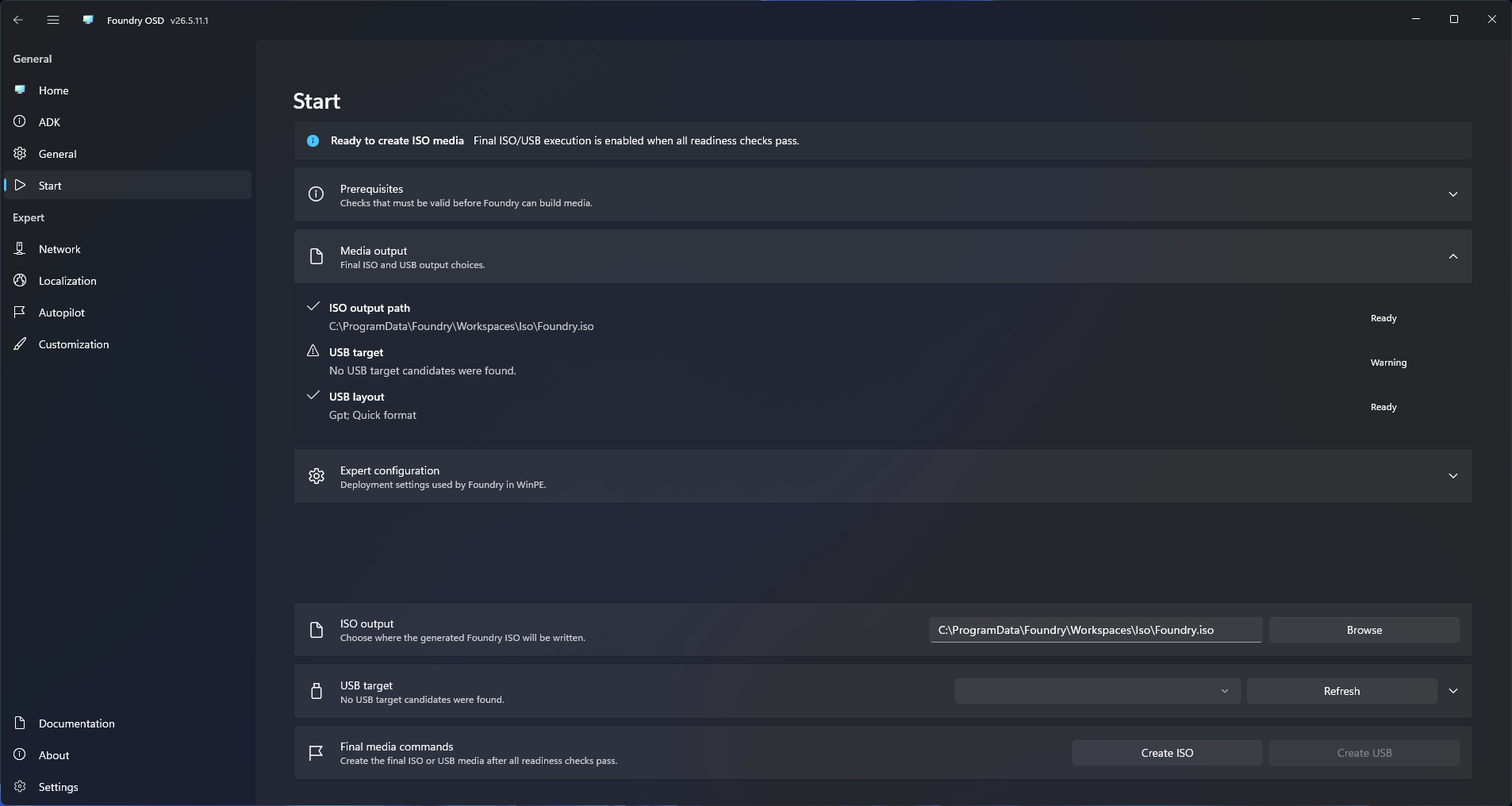
ISO creation packages the prepared WinPE workspace into a reusable file.
- Select the ISO output path.
- Confirm the target architecture and WinPE language.
- Select the driver vendors to include.
- Start ISO creation.
- Wait for the final
.isofile to be written.
Create USB
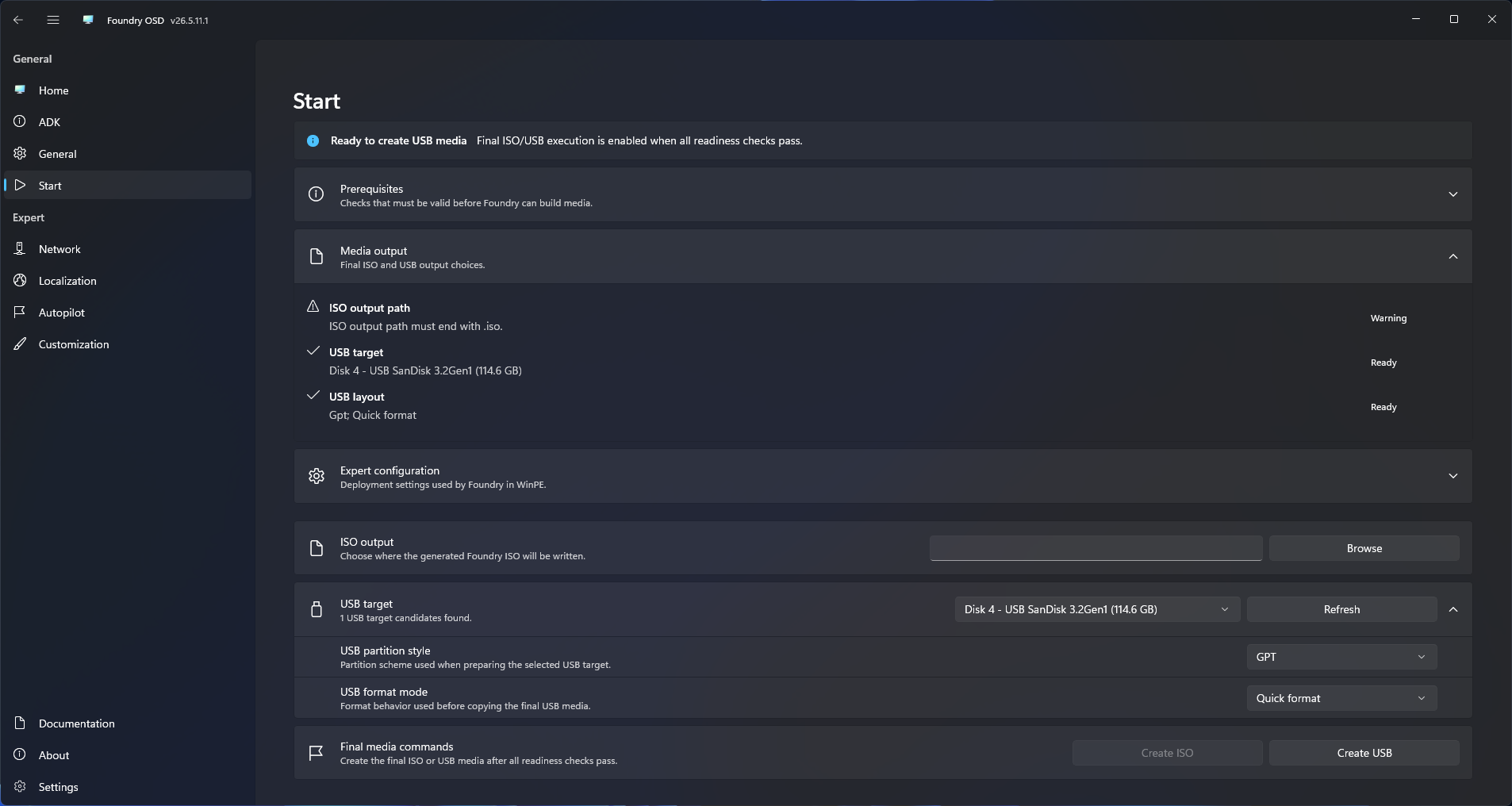
USB creation provisions the selected disk directly.
- Select the USB target disk.
- Confirm that the selected disk is the intended removable device.
- Select the target architecture and WinPE language.
- Select the driver vendors to include.
- Start USB creation.
- Confirm the destructive action when prompted.
USB creation erases and repartitions the selected disk. Do not continue until the target disk is confirmed.
Update USB
When the selected USB disk already has the expected Foundry layout, Foundry OSD shows Update USB instead of Create USB.
Foundry OSD treats a USB disk as existing Foundry media when it has both expected volumes:
BOOTformatted as FAT32Foundry Cacheformatted as NTFS
Update USB refreshes the BOOT partition and, when runtime payload provisioning is enabled, refreshes the Foundry Connect and Foundry Deploy payloads under Runtime on Foundry Cache. It does not repartition the disk and does not format Foundry Cache, so downloaded operating system images, driver packs, and firmware cache content remain available.
Build progress
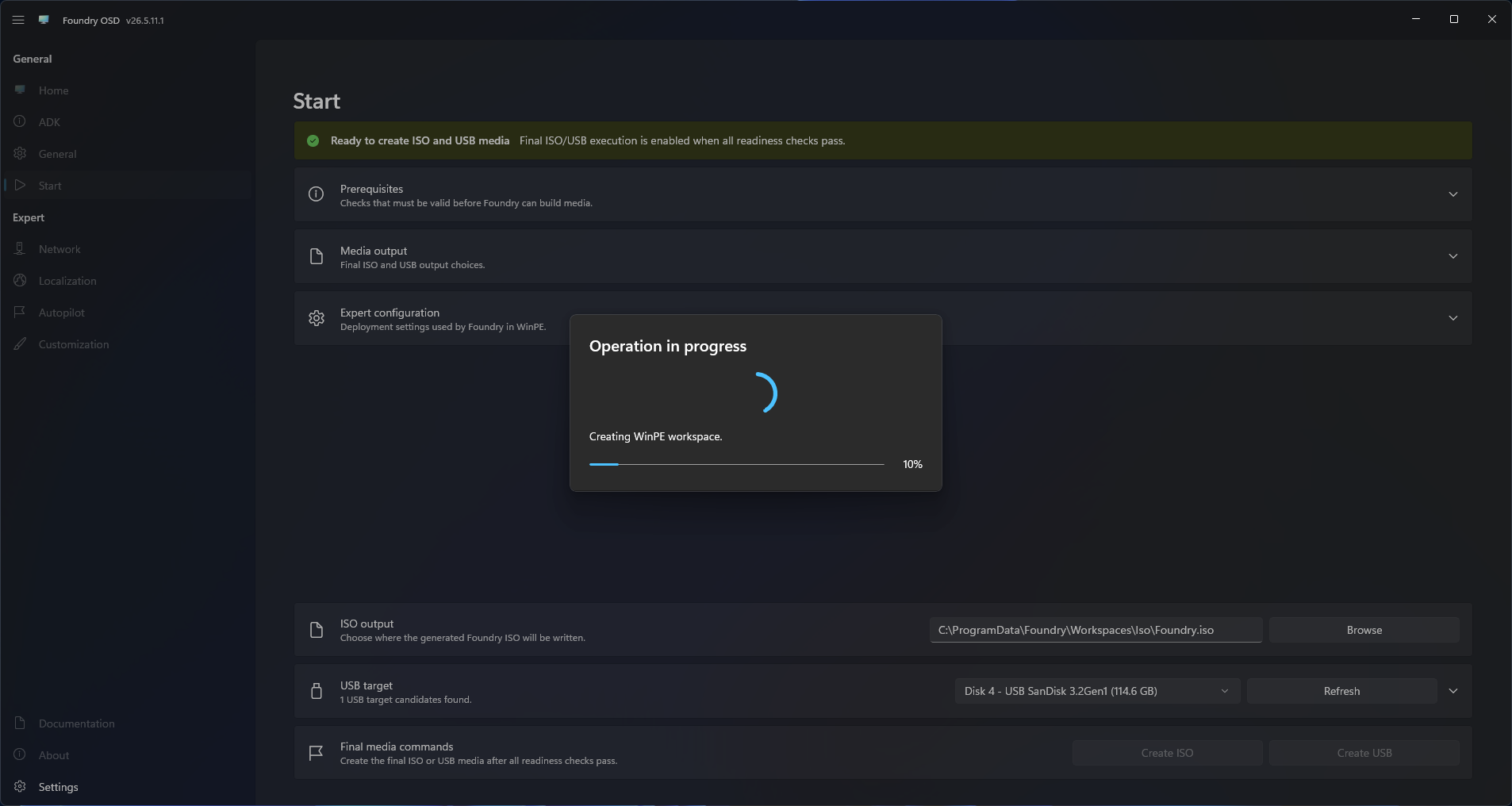
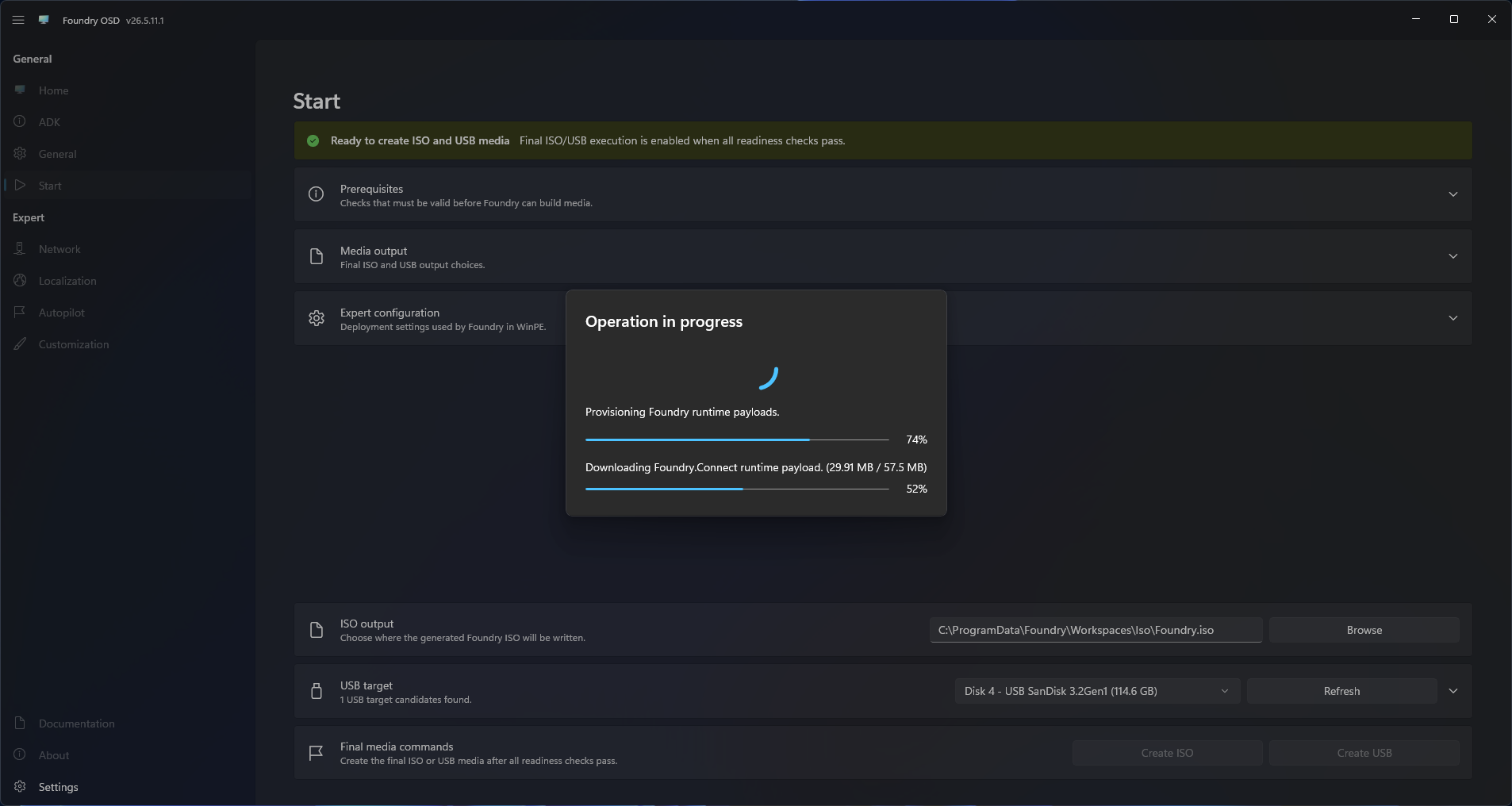
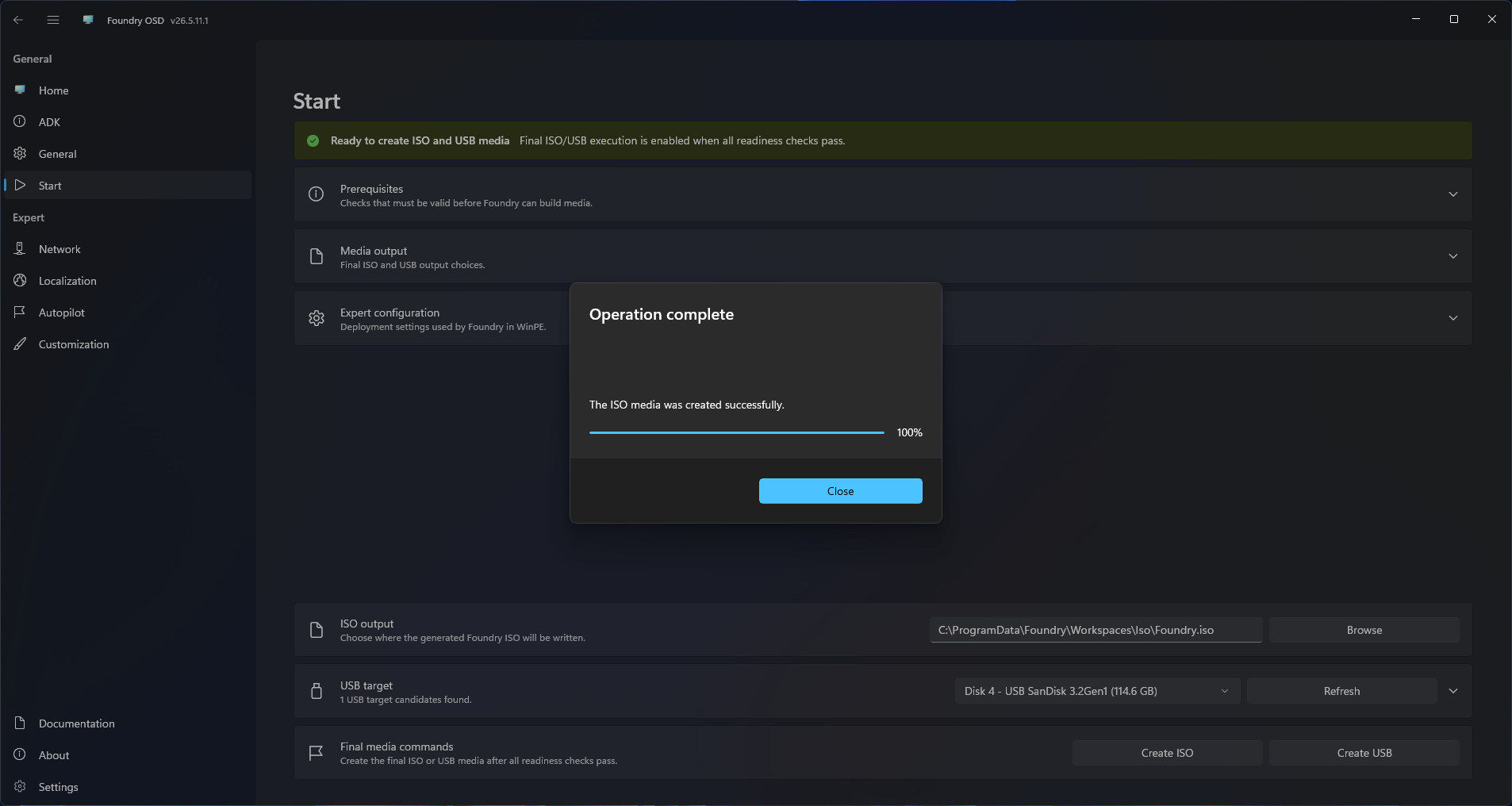
During media creation, Foundry OSD reports progress for runtime downloads and media build steps. Foundry Connect is provisioned with the boot image. Foundry Deploy is resolved later by the WinPE bootstrap, with USB cache paths used when available.
Advanced media options
Advanced media options affect boot behavior and staging:
- CA2023 signature mode
- USB partition style
- USB format mode
- Custom driver directory
Change these only when a deployment environment requires them.
Capture the advanced media options section with CA2023, partition style, format mode, and custom driver controls visible.
Next steps
- Open Network Readiness to understand what happens after the target boots.
- Review the Expert Mode section when media should include predefined deployment behavior.