Zero-touch hardware hash upload
Zero-touch hardware hash upload captures the device hardware hash in WinPE and imports it into Microsoft Intune with Microsoft Graph.
Use this mode when the tenant allows the administrator to create or reuse the app registration used by generated media, grant Microsoft Graph consent, and carry encrypted certificate material for app-only authentication.
This is tenant-bound media. Test the workflow on representative hardware and with the target tenant before using it at scale.
What this mode does
Foundry Deploy runs the upload automatically during the deployment pipeline after Windows has been applied. No technician sign-in is required on the target device.
The upload step:
- Copies
PCPKsp.dllfrom the applied Windows image into WinPE. - Runs OA3Tool to capture the hardware hash.
- Authenticates to Microsoft Graph with the media certificate.
- Imports the device through the Windows Autopilot import endpoint.
- Waits for the device to appear in Windows Autopilot devices.
- Applies or clears the selected group tag when needed.
Requirements
You need:
- Foundry OSD.
- Windows ADK and Windows PE add-on.
- A Microsoft Entra tenant where the administrator can manage app registrations and service principal permissions.
- An administrator who can grant admin consent for the delegated Microsoft Graph permissions used during tenant connection:
Application.ReadWrite.All,AppRoleAssignment.ReadWrite.All,DeviceManagementServiceConfig.Read.All, andUser.Read. - An app registration used by generated media with the Microsoft Graph application permission
DeviceManagementServiceConfig.ReadWrite.Allgranted by admin consent. - A Foundry-managed certificate that is not expired.
- A PFX file and password selected during media creation.
- Network access from WinPE to Microsoft Entra and Microsoft Graph during deployment.
Foundry OSD does not persist the PFX file or PFX password in ProgramData. Store them securely. You must select them again when building new media.
Configure Foundry OSD
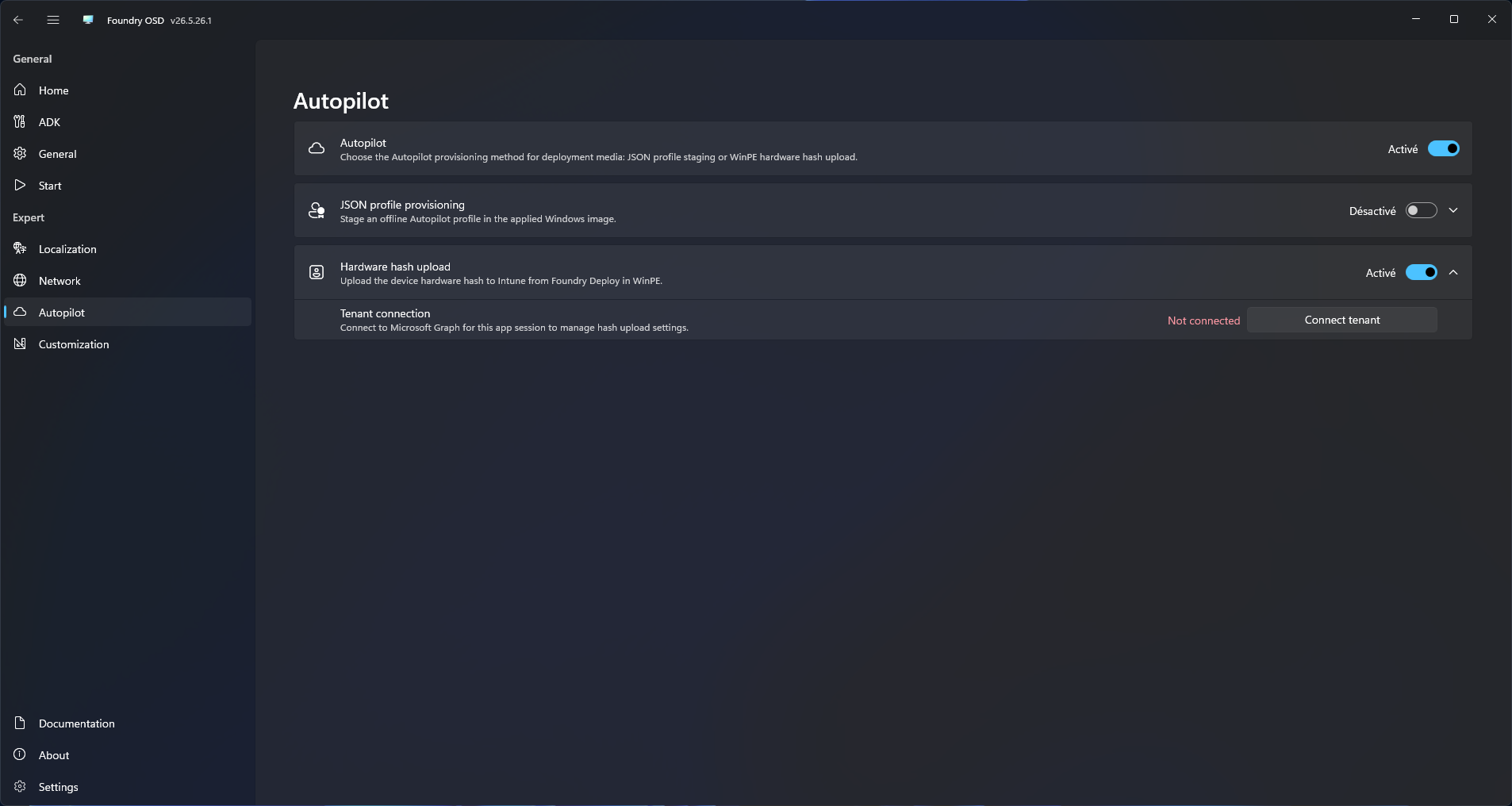
- Open Foundry OSD.
- In the navigation menu, under Expert Mode, select Autopilot.
- Enable Autopilot.
- Select Zero-touch hardware hash upload.
Connect the tenant
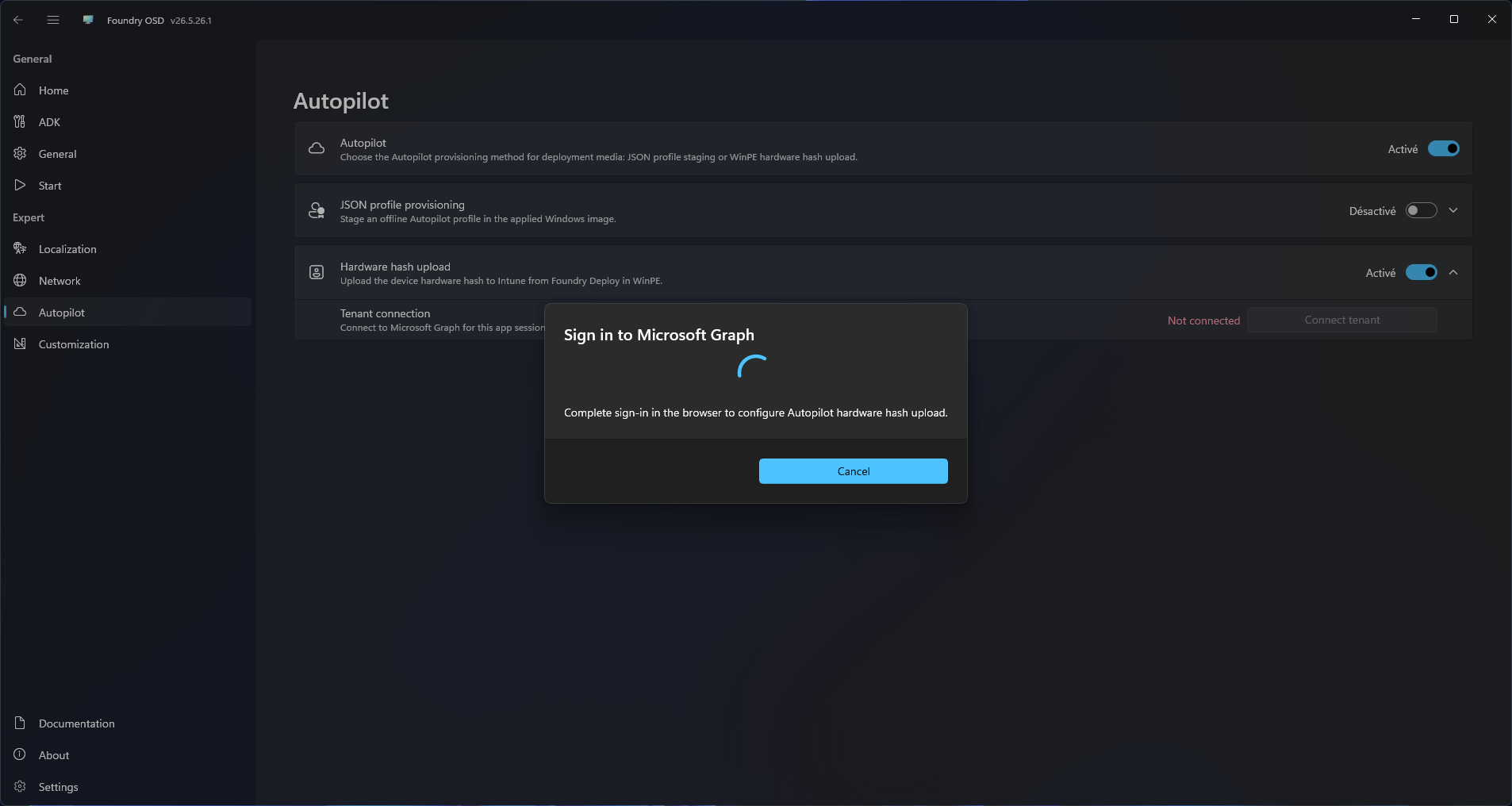
- Select Connect tenant.
- Complete Microsoft Graph sign-in.
- Let Foundry OSD create or adopt the tenant app registration used by generated media.
- Confirm that tenant ID, client ID, and readiness status are shown.
The app registration created or adopted during tenant connection is named:
Foundry OSD Autopilot Registration
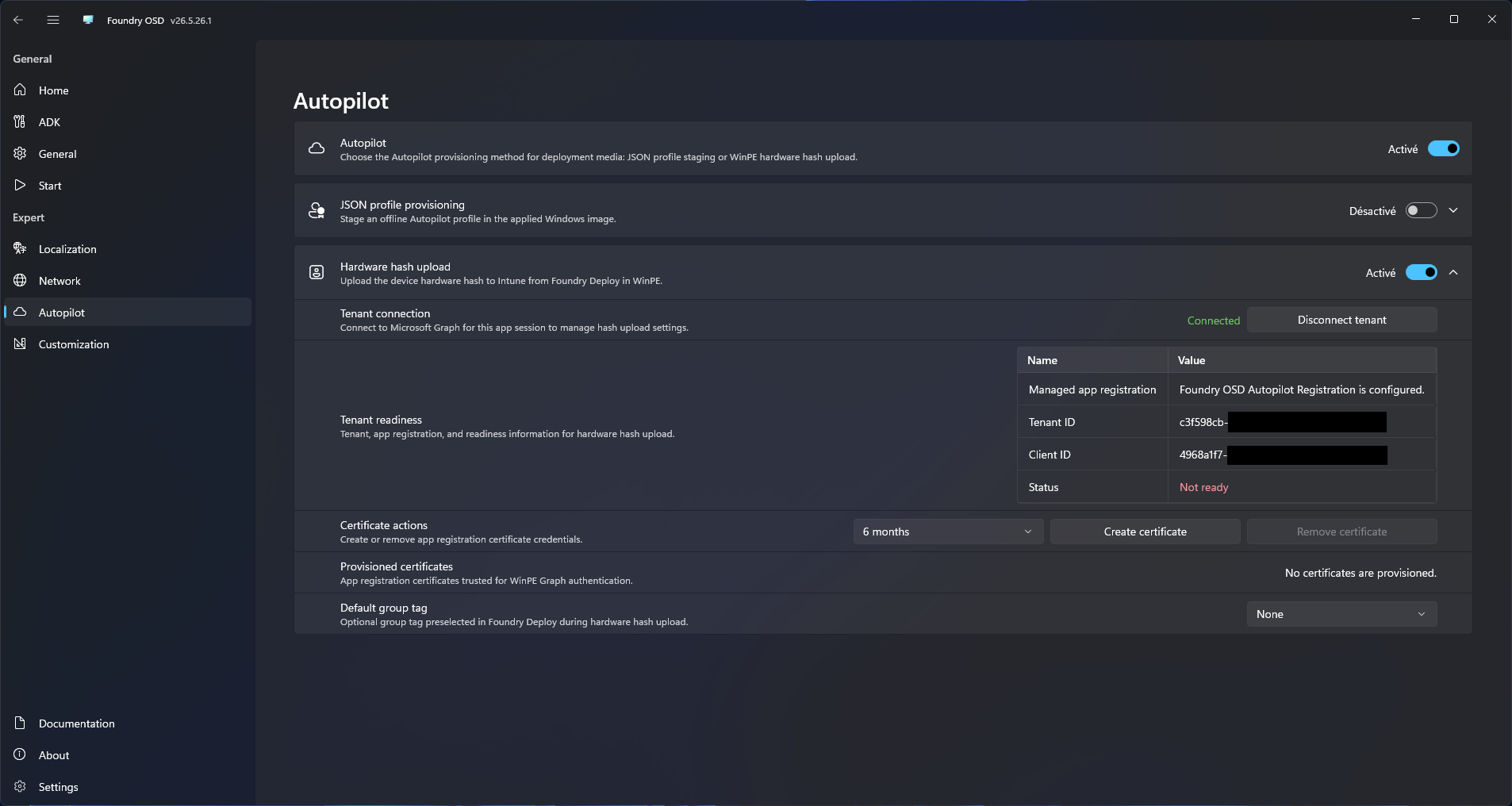
The tenant can be connected while readiness is still Not ready. A valid certificate is required before the configuration is ready for media creation.
Create and select the certificate
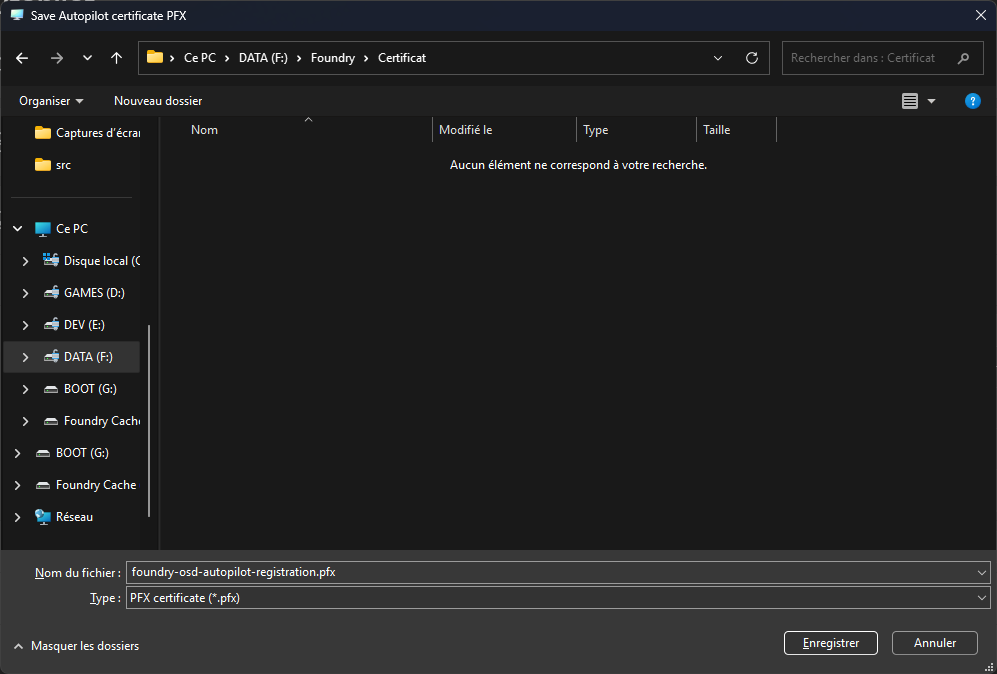
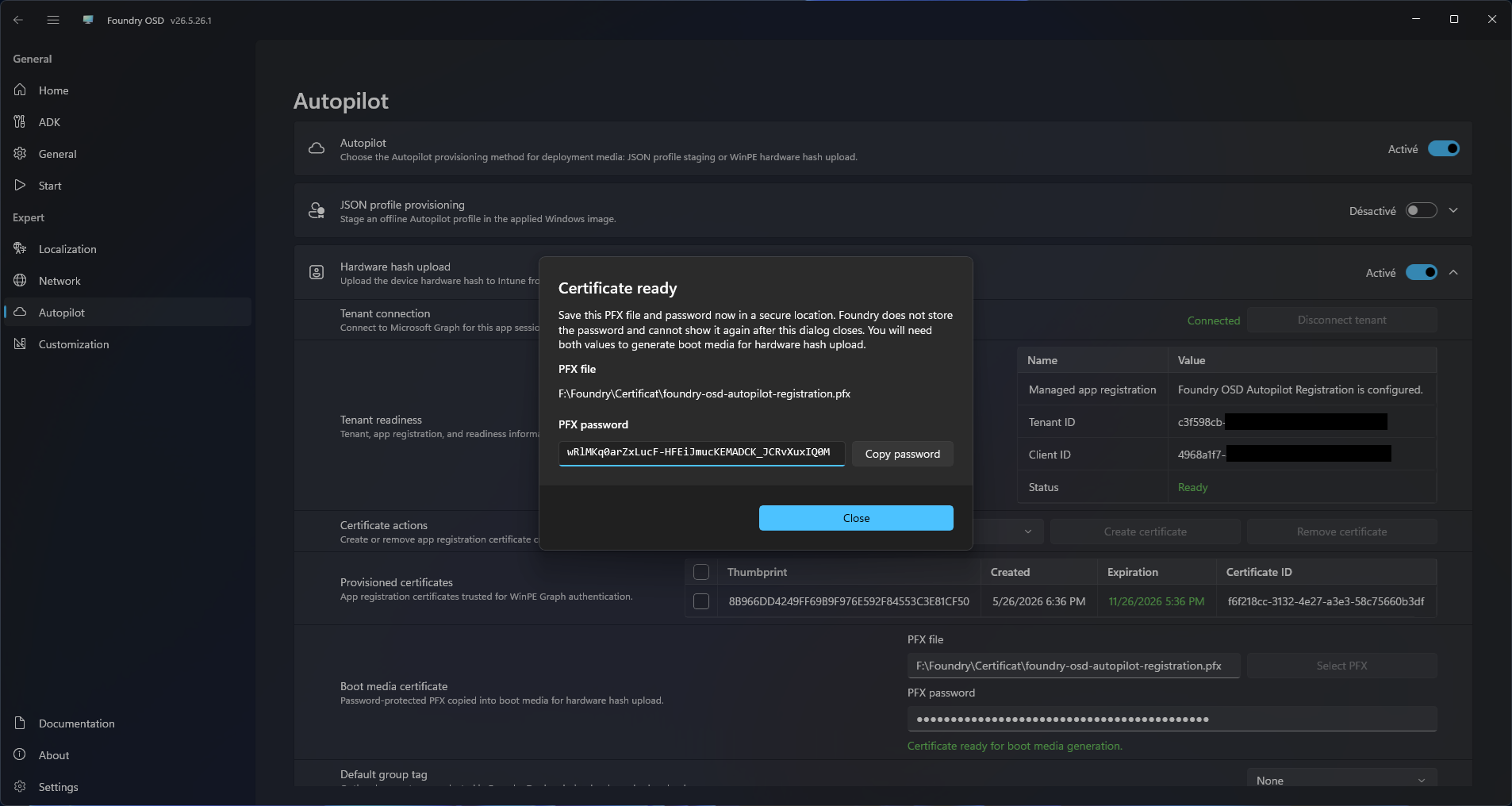
- Create a Foundry-managed certificate.
- Save the generated PFX file.
- Save the generated PFX password before closing the dialog.
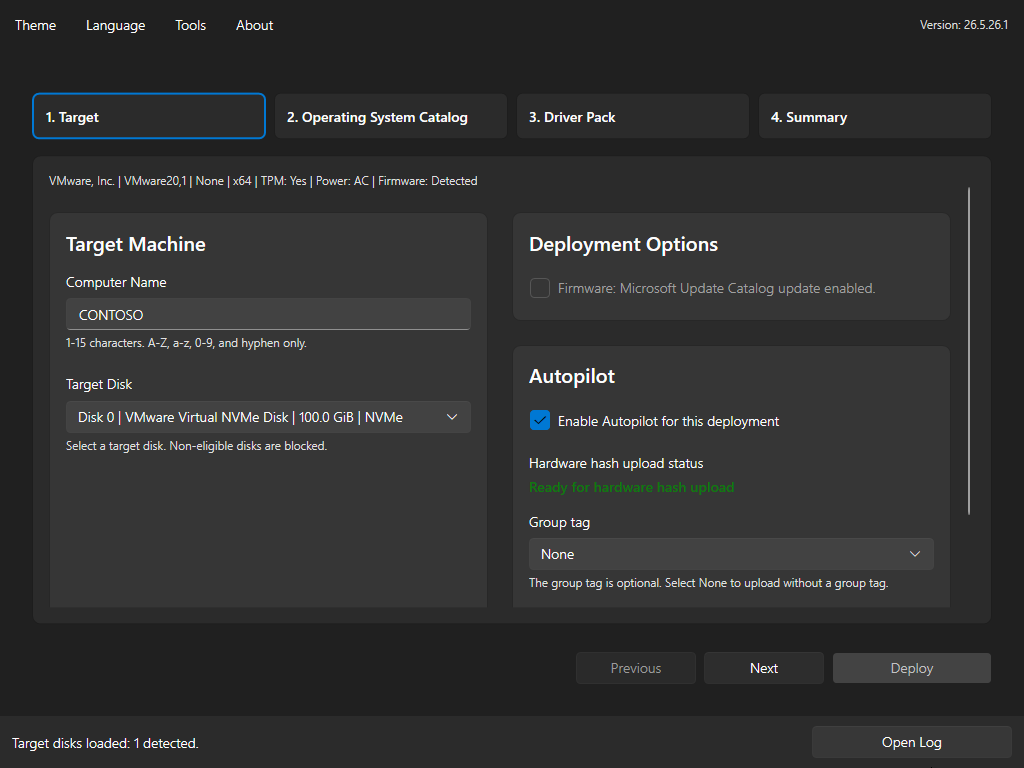
- In Boot media certificate, select the matching PFX.
- Enter the PFX password.
- Confirm that Foundry validates the thumbprint and expiration.
Choose a group tag
Select a default group tag or leave None selected.
Foundry OSD stores only the selected default group tag in the generated deploy configuration. It does not stage the full tenant group tag list into the boot image. Foundry Deploy discovers live group tags again at startup when the certificate configuration is valid.
If the configured default group tag is no longer available during deployment, Foundry Deploy selects None.
Build the media
Build ISO or USB media normally.
Foundry OSD stages:
- OA3Tool for the selected architecture.
- Encrypted PFX bytes.
- Encrypted PFX password.
- Media secret key.
- Tenant ID, client ID, certificate metadata, and default group tag preference.
- Generated Foundry Connect and Foundry Deploy configuration.
Generated media is tenant-sensitive. Protect the boot image and physical media.
Deploy the device
- Boot the target device from the generated media.
- Wait for Foundry Connect to report Network ready.
- Continue to Foundry Deploy.
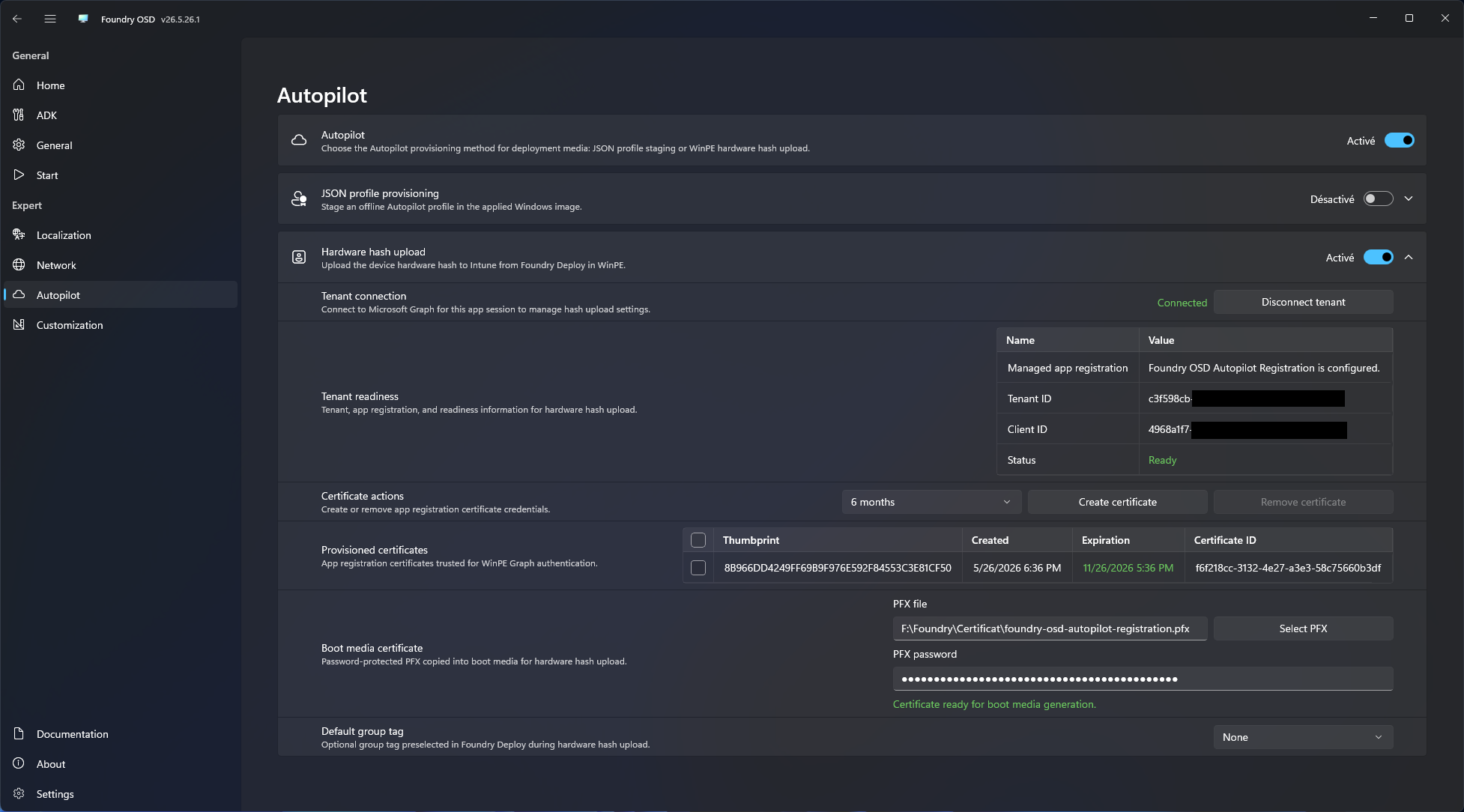
- Review the Target page.
- Confirm the Autopilot state and group tag.
- Complete the normal deployment workflow.
What happens during deployment
Foundry Deploy runs the Autopilot step after Windows has been applied.
The wait for Windows Autopilot device visibility can last up to 10 minutes. If the device already exists, Foundry attempts to reconcile the requested group tag instead of creating a duplicate.
Graph upload or polling failures skip only the Autopilot upload result and allow the Windows deployment to continue. Local support-library failures, such as missing or unloadable PCPKsp.dll, fail the Autopilot provisioning step because the hash cannot be captured reliably.
Expected final result
In Microsoft Intune admin center, open Devices > Enrollment > Windows Autopilot devices.
Confirm that the device serial number appears and that the group tag matches the deployment selection.
Logs and validation
Foundry keeps diagnostics on the deployed Windows image:
<target Windows>\Windows\Temp\Foundry\Logs\AutopilotHash
Useful files:
| File | Use |
|---|---|
OA3.xml | OA3Tool hardware hash report |
OA3.log | OA3Tool capture log |
AutopilotHWID.csv | Captured serial number and hardware hash |
AutopilotUploadResult.json | Sanitized Graph upload result |
autopilot-hash-upload-status.json | Final Foundry Deploy Autopilot state |
Retained files are sanitized and must not contain access tokens, authorization headers, PFX bytes, PFX passwords, private key material, media secret keys, or raw Graph payloads.
Next steps
- Open Interactive Hardware Hash Upload when app-registration certificate authentication is blocked by tenant policy.
- Open Troubleshooting for common upload failures.